Google is now using geothermal technology to vaporize rock deep underground. This project aims to create a steady supply of clean power for the company. By drilling deep and using high heat, they can tap into energy that never runs out. How does Google geothermal technology work? Traditional green energy like wind and solar only works when the weather is right. Geothermal technology is different because it uses the heat that is already inside the Earth. Google is working with partners to drill deeper than ever before to reach extremely hot temperatures. This process involves turning water into steam by touching hot rocks or even vaporizing the rock itself to release energy. The company wants to move away from fossil fuels that hurt the planet. Using the earth as a giant battery is a smart way to get power without making smoke. This new method allows them to build power plants in places where it was once impossible. They are pushing the limits of what machines can do in high heat en...

Does your phone die before you even eat dinner? Learning how to make your phone battery last longer can save you a lot of daily stress. A dead screen when you need a ride home is a bad feeling.
You can make your battery last much longer by turning down your screen brightness and stopping apps from running in the background. Most phones have hidden settings that drain power for no good reason. Let us look at simple steps to fix this problem today.
Check What Eats Your Power
Your battery does not just drain by magic. Certain apps use up all your power while they sit quietly in your pocket. My old weather app checked my location every five minutes, and that alone killed half my charge by noon.
You need to find the guilty apps right now. Open your Settings app and tap on Battery. Look at the list of apps to see which ones use the most juice. If you see a game or a social app you rarely open taking up twenty percent of your power, you know who the bad guy is.
On an iPhone, go to Settings, then tap Battery, and scroll down to see your app list. On a Samsung or other Android device, go to Settings, tap Battery and Device Care, and then tap Battery. You can also read more about how mobile devices work on this Smartphone page if you want extra details.
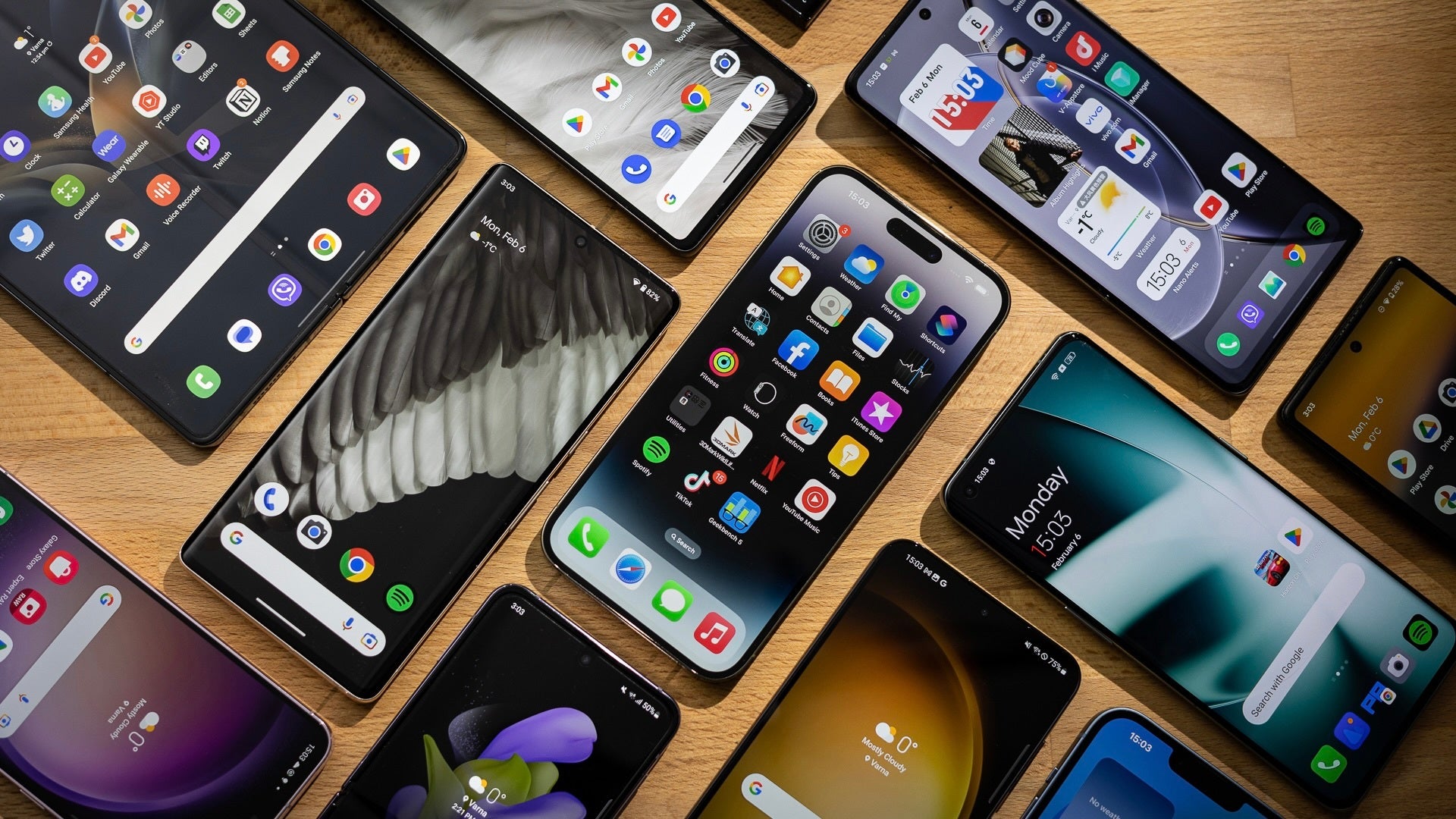
Turn Down Your Screen Light
Your screen is the hungriest part of your phone. Keeping it at maximum brightness is like leaving your car engine running in the driveway all night. Most people do not need their screen set to full blast indoors.
Swipe down from the top of your screen to open your quick settings panel. Drag the brightness slider down to the middle, or turn on Auto-Brightness so your phone adjusts for you. A dimmer screen saves a ton of battery and is also easier on your tired eyes at night. I keep mine at about forty percent, and my phone easily makes it to bedtime now.
Stop Background App Refresh
Many apps keep working even when you close them. They check the internet for new posts, ads, and updates while you sleep. This constant work drains your battery without you ever knowing it.
You can turn off this feature easily. On an iPhone, go to Settings, tap General, and then tap Background App Refresh. Turn it off completely or switch off the apps you do not care about. On Android, go to Settings, tap Apps, pick an app, and tap Mobile Data to turn off background usage. Stopping background tasks is also a great part of general Computer security habits, since fewer active connections mean a safer device too.
Manage Your Location Services
Apps love to know where you are standing. GPS tracking is one of the fastest ways to kill a phone battery. Does a cooking app really need to know your exact GPS coordinates while you make pasta?
Change your location permissions to save power. Go to Settings, tap Privacy or Security, and then tap Location Services. Look through every single app on the list. Change them from Always to While Using the App, or turn them off completely if the app has no business knowing where you are.
My map app needs my location when I drive, but my flashlight app definitely does not. Changing just three apps from Always to Never gave me an extra hour of screen time last week. It is a quick change with a huge payoff.
Turn On Power Saving Mode
Sometimes you just need your phone to stay alive for a few more hours. That is when you should use the built-in power saving mode. It slows down tiny background tasks and dims your screen a bit to stretch your last few percentage points.
Look for Low Power Mode on an iPhone or Power Saving on Android inside your main settings menu. You can also add a quick button for it in your top swipe-down menu. I turn this on whenever my battery drops below twenty percent during a long day of travel.
People often wonder Artificial Intelligence and K-12 Education: Parent Views about how modern tech affects our daily routines, but battery anxiety remains a very real problem for everyone. Learning these quick habits means you will spend less time hunting for a wall outlet and more time actually using your device. Try changing your screen brightness right now, and see how much longer your phone stays alive today.
Clear Out Old Cache Files
Temporary files can pile up over time and slow down your system. When your phone has to work harder to open files, it burns through extra power. Clearing out old junk data gives your hardware a break.
You can clear cache files without losing your personal photos or important notes. Go to your settings menu, find your storage list, and look for cached data options. Removing these extra files frees up space and helps your processor run smoothly.
Manage Push Notifications Wisely
Every time a store app or news site sends you a push alert, your screen wakes up and uses electricity. If fifty apps buzz your phone all day long, your battery pays a heavy price.
Take control of your alerts by changing your notification rules. Here are the best ways to cut down on unnecessary buzzes:
- Turn off alerts for games and shopping apps that you rarely use.
- Group non-urgent updates into a single daily summary if your phone has that feature.
- Keep sound and vibration off for chat groups that send too many messages.
Stopping constant alerts keeps your screen dark and quiet until you actually want to check your messages. You will notice a big drop in power usage once you silence the noise.
Keep Your System Up to Date
Software makers often release updates that fix power bugs. If your operating system is out of date, a hidden glitch might be wasting your electricity behind the scenes.
Check for system updates in your main settings menu once a month. Installing the newest software patch usually brings better energy management tools and keeps your device running at its best.
Comments
Post a Comment
Thank you for your comment